
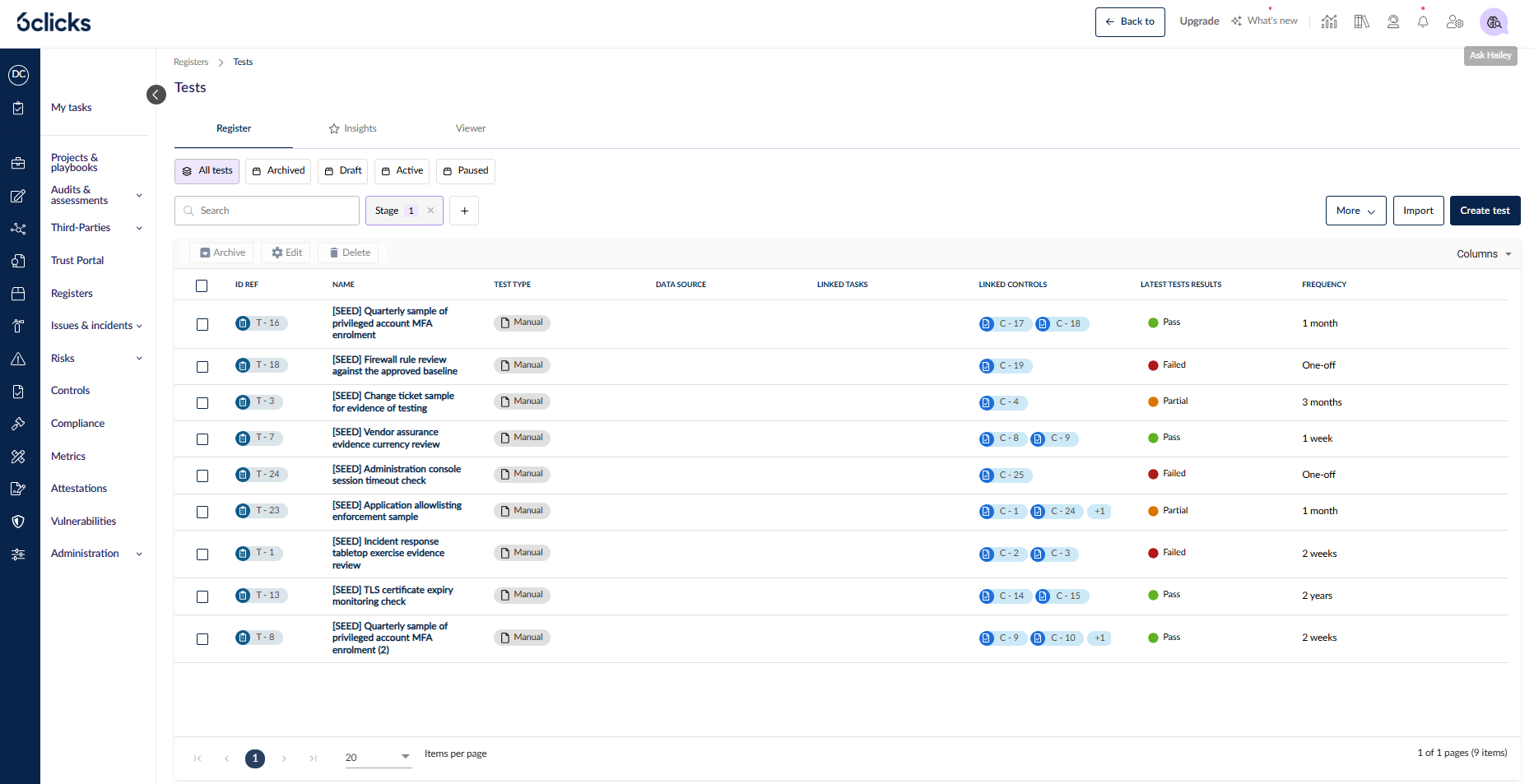
Control testing used to live in spreadsheets, chased by email. Two new registers now hold it in the platform: the Tests register defines what you test and how often, and the Tasks register holds the work that goes with it. Set a test up once, and 6clicks opens each testing period, raises the evidence task, and keeps a dated record of every run.
Availability. The Tests and Tasks registers are turned on per team by 6clicks as part of iGRC. They are not switched on automatically. When your team is set up, the register permissions go to the Administrator and Advisor roles, and an administrator can pass them on to any other role or user. Talk to your account team to have them enabled.
What's new
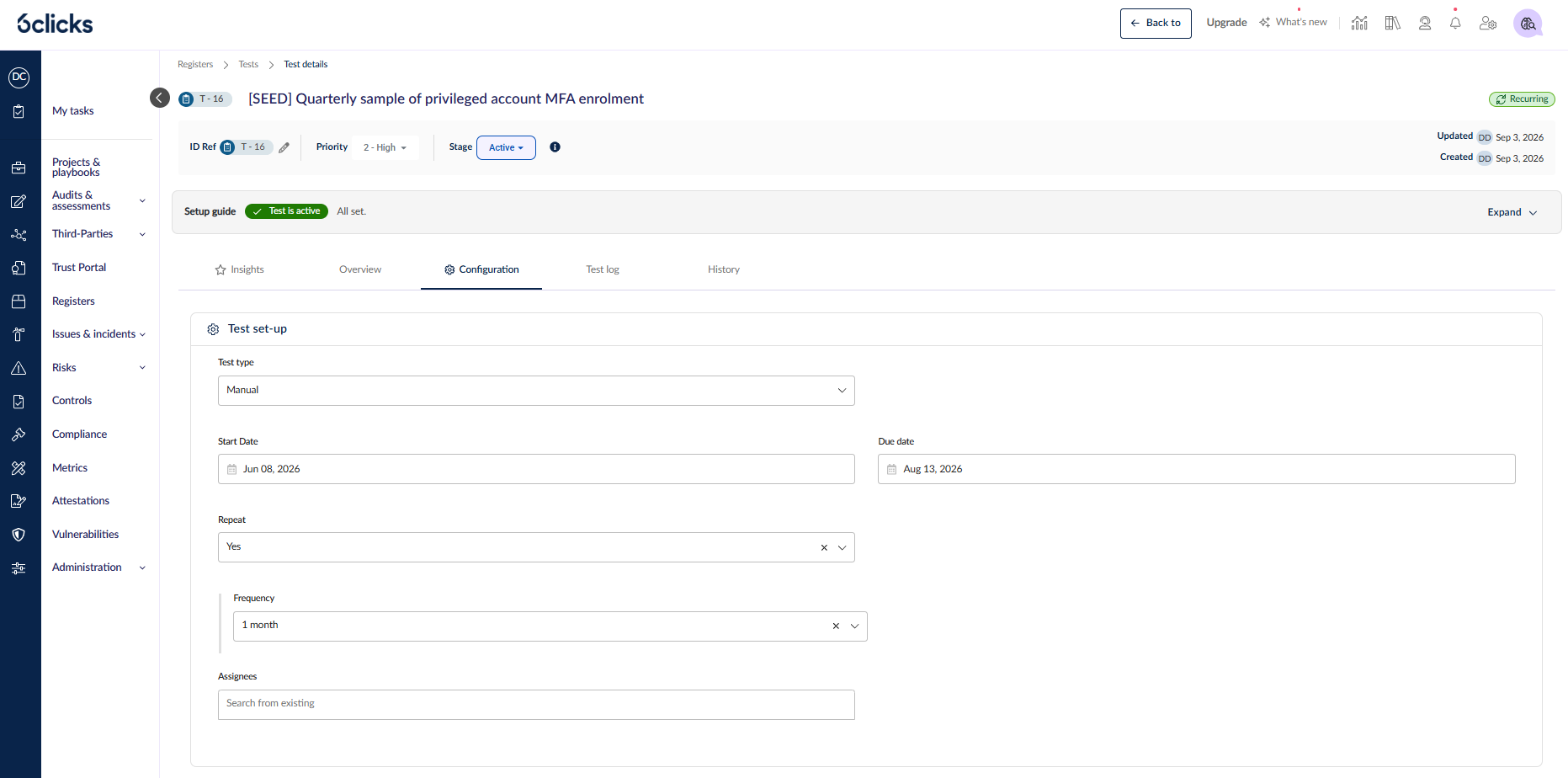
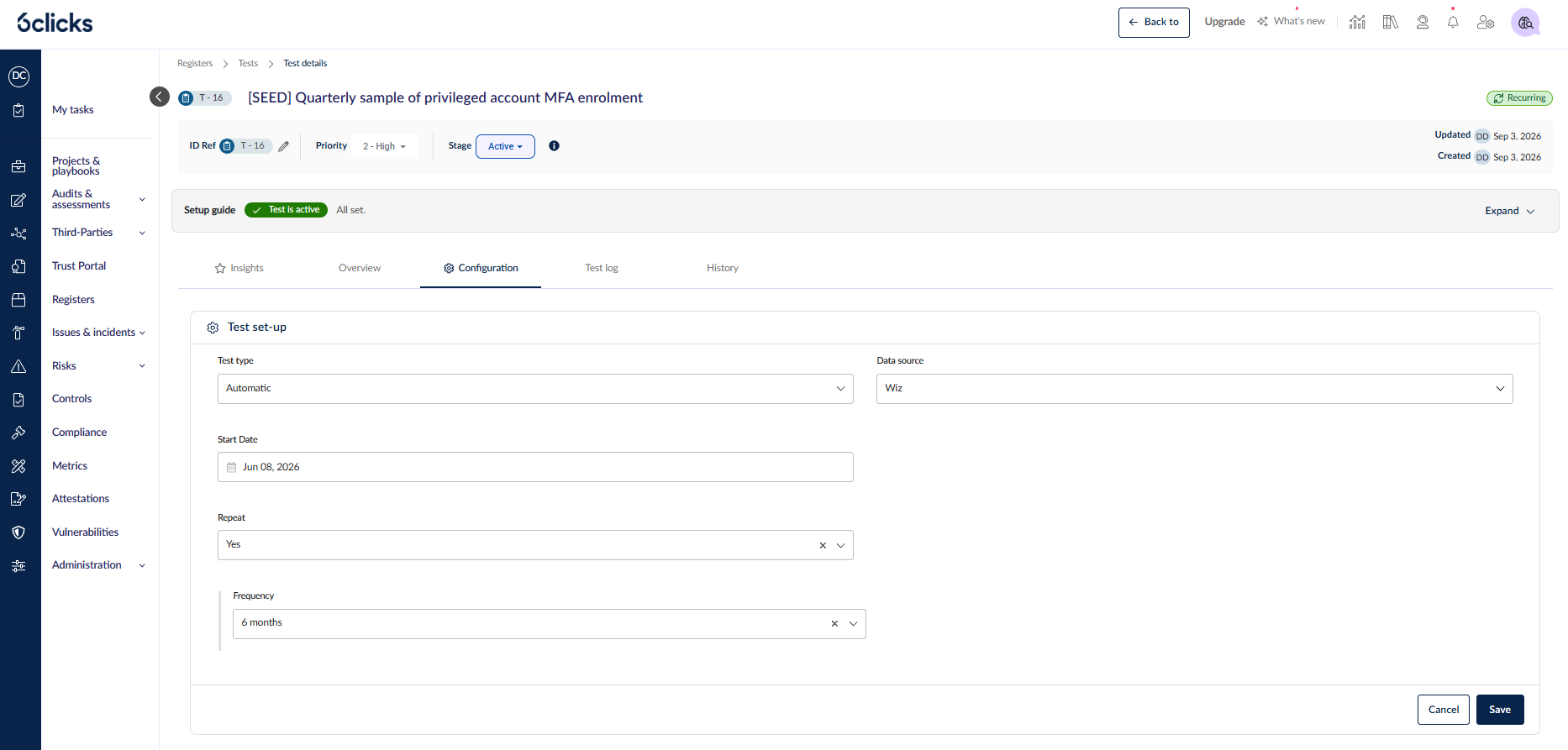
Set up how a test runs, then activate it. The Test set-up panel on the Configuration tab holds Test type (Manual or Automatic), Start date, Repeat and Frequency. A Manual test also takes a Due date and Assignees; an Automatic test takes a Data source instead. A collapsible Setup guide at the top of the record tracks one required item — Set up evidence validation — and three recommended ones, then lets you Activate test. Activating creates the test's first test log.
A Tasks register for the work around your controls. Tasks are records in their own right, with an ID Ref of the form TSK - 1, a Type of Generic or Evidence validation, and their own task logs. A task with a start date, a due date and Repeat set generates a log per period, so recurring work has an owner, a date and a record of each occurrence. Logs appear in the assignees' My Tasks list.
Evidence collection is joined up between a test and its task. For a repeating Manual test in the Active stage, each scheduled test log now opens at Ready for evidence collection rather than Not started, and 6clicks raises the evidence-validation task at the same moment. The task and the test log share the same evidence, the same comment thread and the same validation guide, so the person collecting evidence never has to open the test. When an assignee moves the task log to *In progress*, the linked test log follows; completing it moves the test log to Under review.
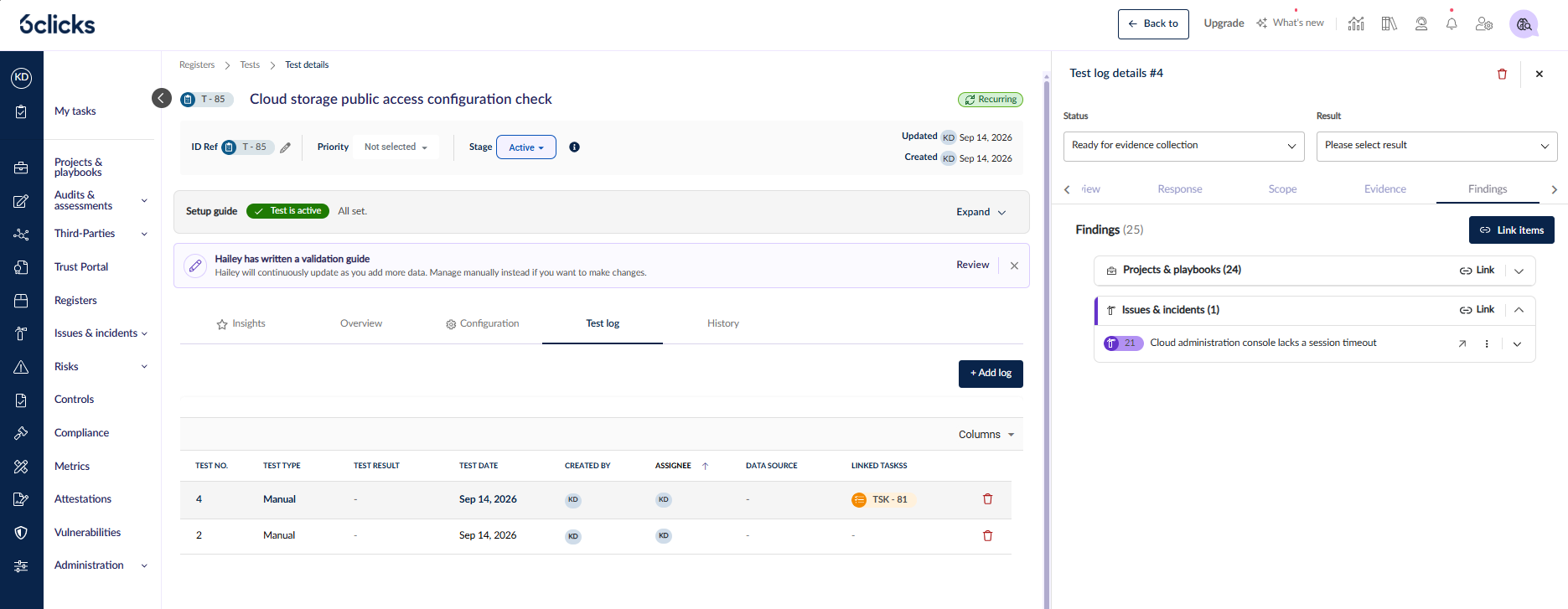
Findings on a test log. A test log now has a Findings tab for recording what came out of that run — a risk, an incident, a task raised to fix something. Use Link items to search any register, tick one or many, and save in one action, or create a new item from inside the drawer. Findings belong to that one log, so each run of a recurring test keeps its own list, and they roll up onto the test's Linked data panel. The tab appears once the log has started, and editing it needs the test-log edit permission. Items from Test and Control registers, Provisions, and Evidence validation tasks cannot be linked as findings.
How it works: setting up a recurring control test
1. Open the Tests register and create a test. Give it a Name and, if you want your own code, edit the ID Ref.
2. On the Configuration tab, open Test set-up. Choose a Test type of Manual, set the Start date, *Due date* and Assignees, set Repeat to Yes, and choose a Frequency.
3. Set up evidence validation on the test. This is the one item the Setup guide requires before you can activate.
4. Select Activate test. The test moves to the Active stage and its first test log is created at Not started.
5. From the next period onward, each scheduled test log opens at Ready for evidence collection, the test's validation guide is frozen onto it, and the evidence-validation task is raised and linked automatically.
6. The assignee works the task from My Tasks. Moving it to In progress moves the test log with it; uploading evidence writes to both. Completing the task log moves the test log to Under review for the reviewer.
7. Record what came out of the run on the log's Findings tab.
Worth knowing. One evidence-validation task is raised per test, not per log — later periods attach a new task log to the same task. If your team has no Tasks register, or the acting user cannot create records in it, the test log is still created but no task is raised. Scheduled tasks are attributed to a stand-in user (a test owner, an owner's org-unit member, the item creator, or an administrator), so audit fields name that person rather than "System".
Talk to your account team about switching on the Tests and Tasks registers for your team.
Read more: