
Risks that need sign-off before they progress — accepted risks, treatment decisions, closures — previously relied on manual follow-up outside the workflow. You can now add Approval stages to your Risk workflow, so designated approvers must review and approve a risk before it moves on.
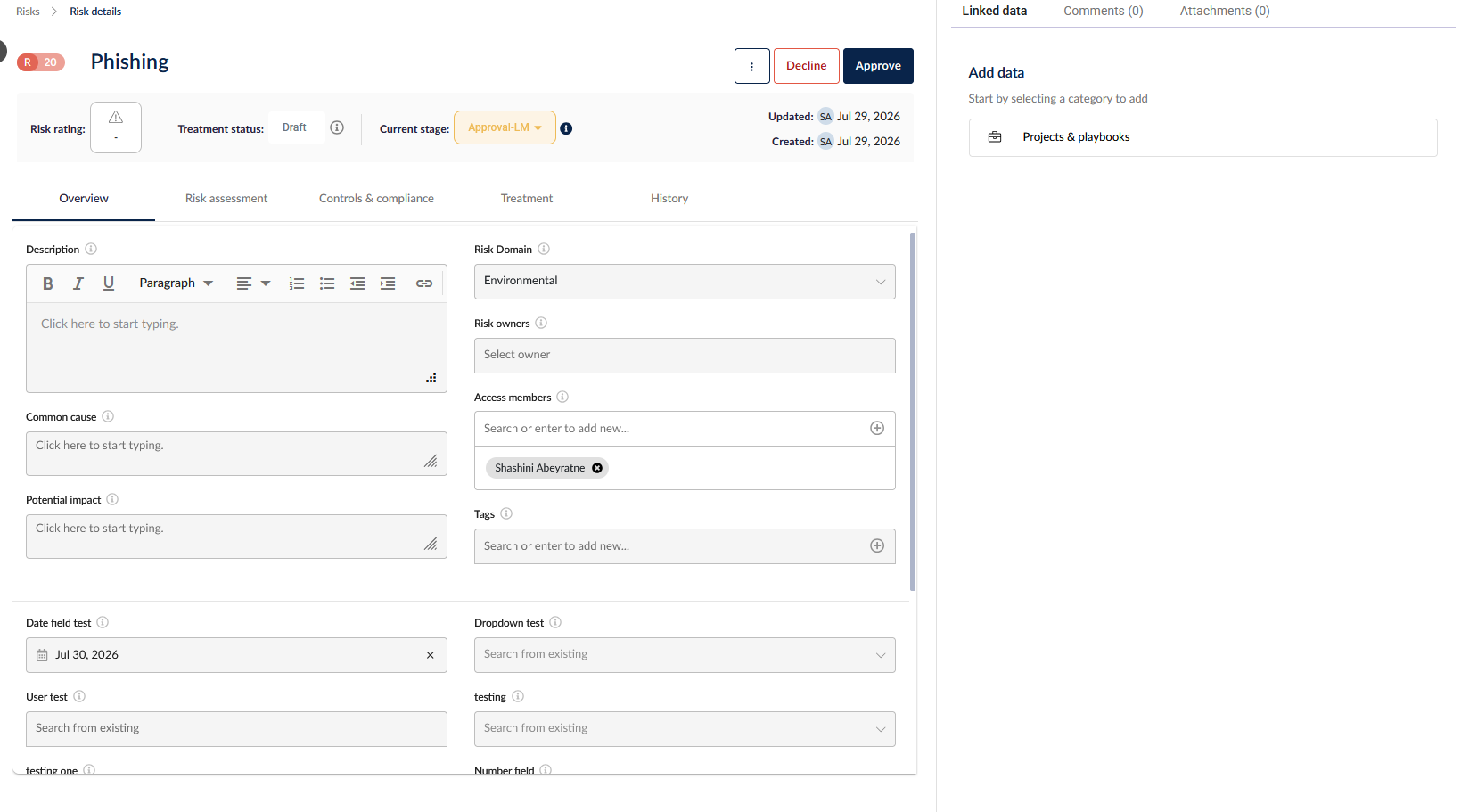
Approval stages in the Risk workflow. When creating a workflow stage you now choose between a Standard stage and an Approval stage. The stage type is set at creation and cannot be changed later.
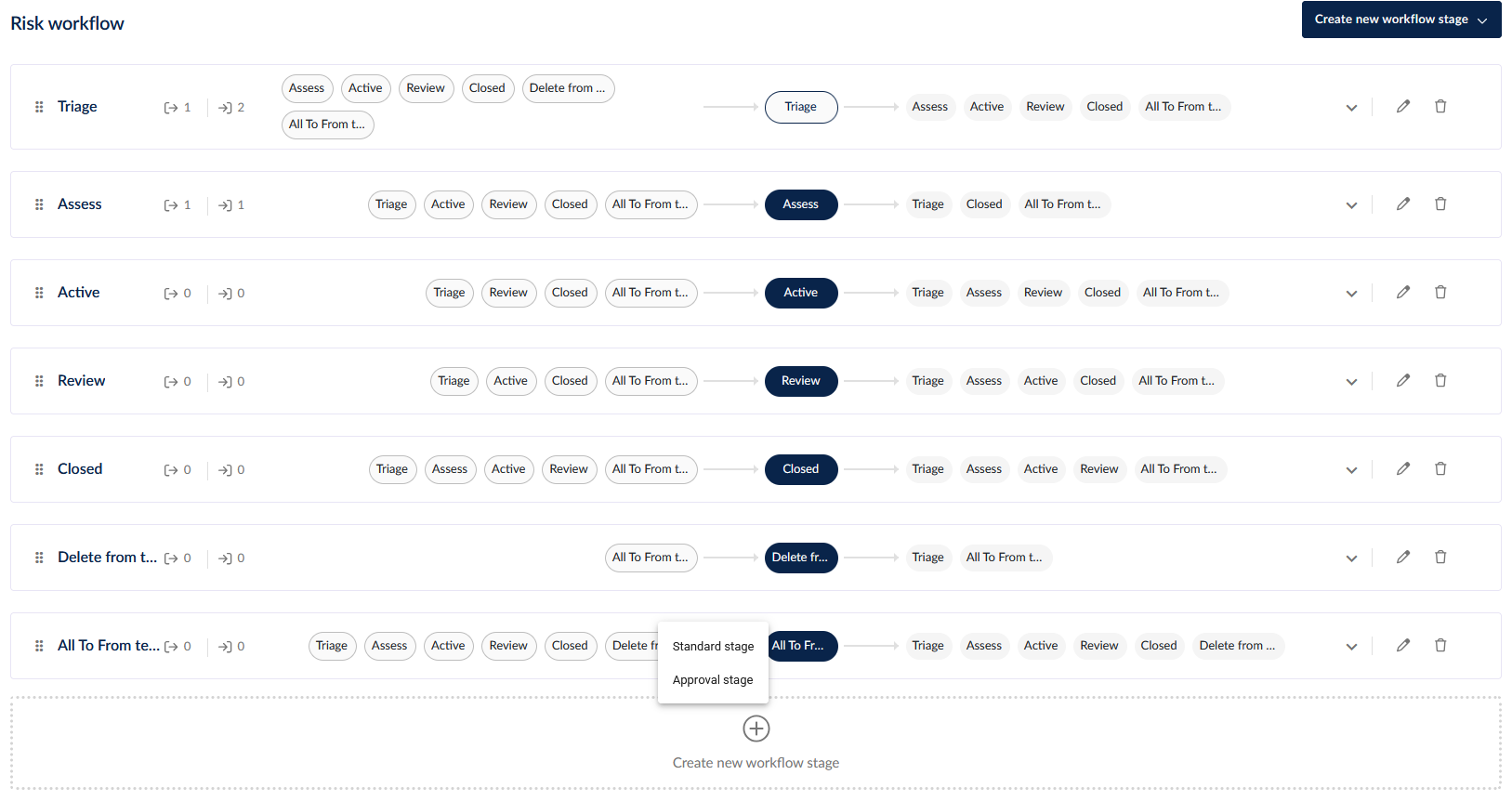
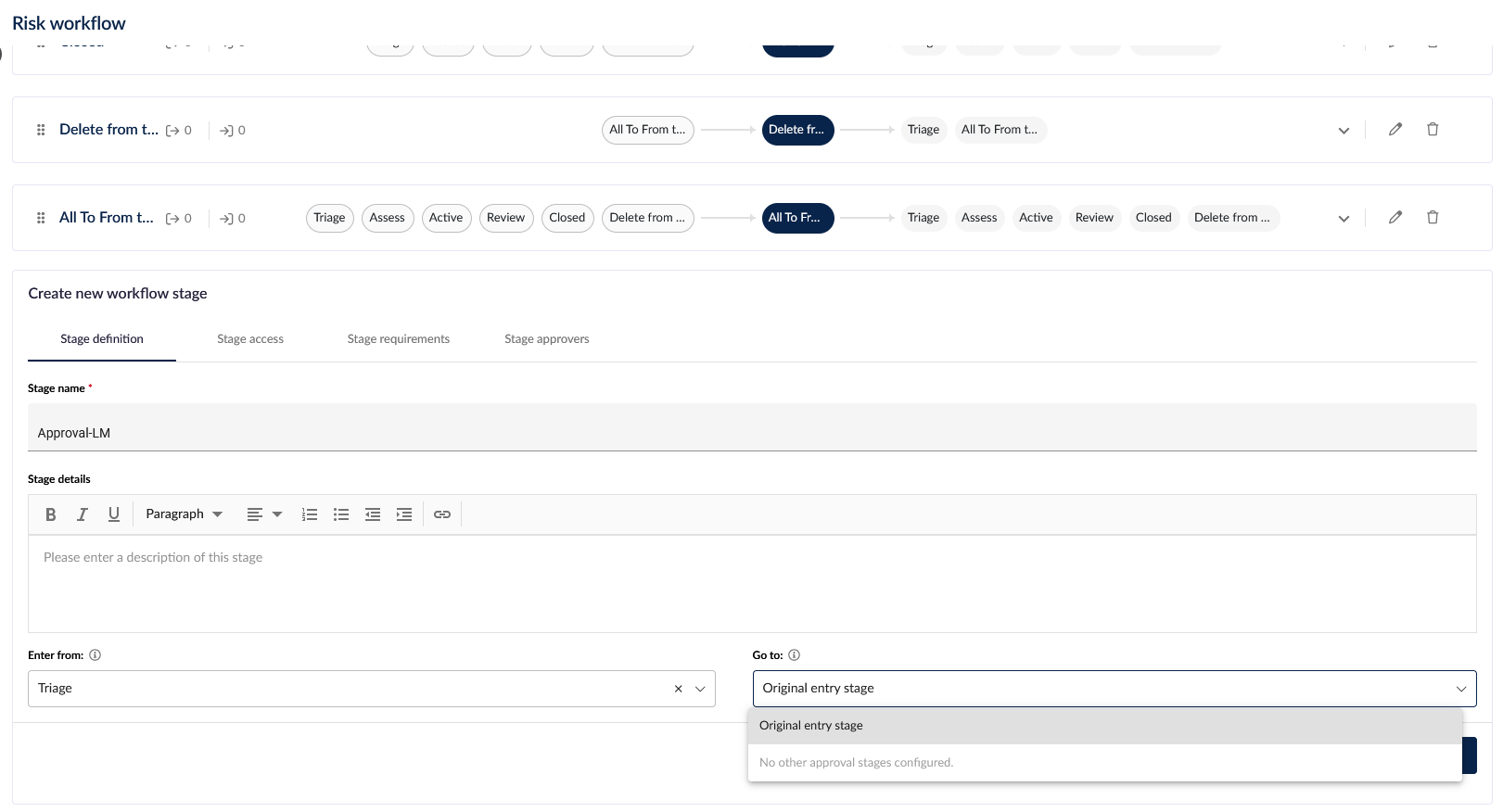
Approval stages define who must approve and where the risk goes next, which only supports the static option "Origin stage" or any other configured approval stage.
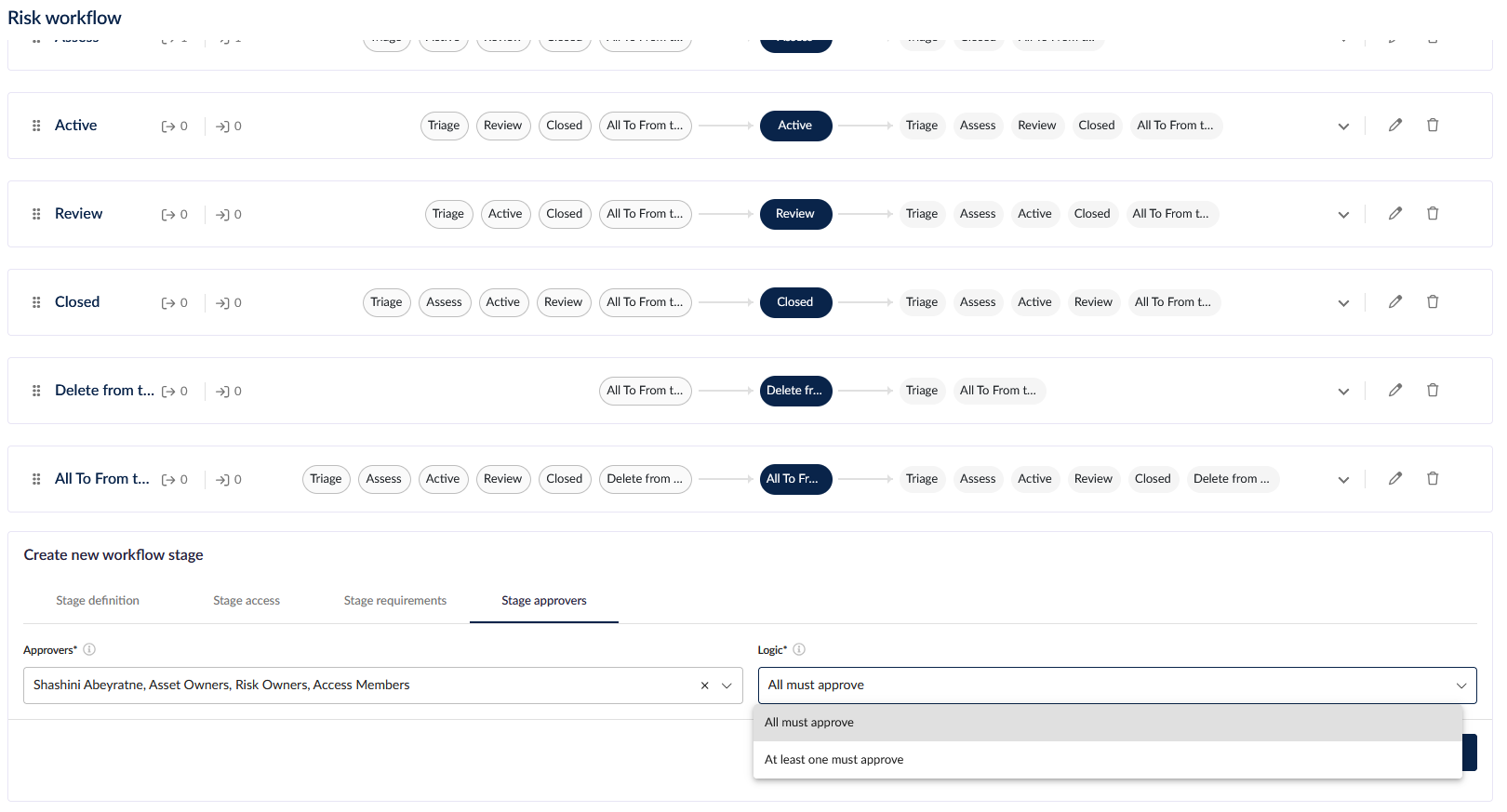
Flexible approvers and approval logic. On the Stage approvers tab, approvers can be individual users, groups or standard fields (Risk Owners or Access Members). Choose the logic for each stage: All approvers or At least one approver.
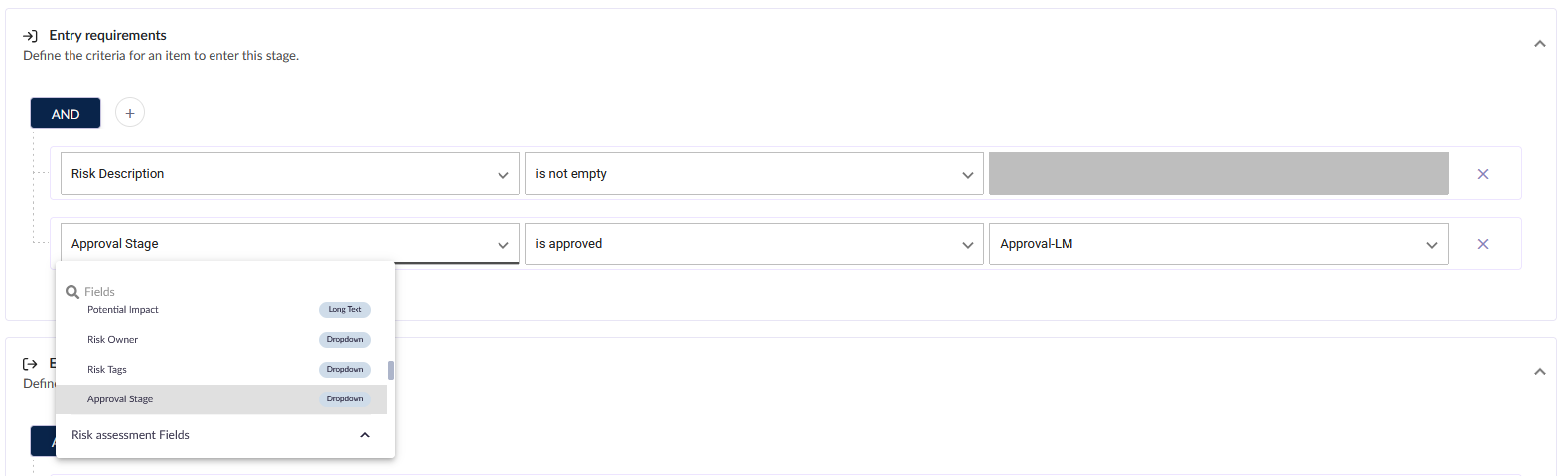
Approvals slot into your existing workflow. Standard stages now list approval stages as an option in their entry requirements (Enter from), grouped alongside standard stages. Add an approval stage to a standard stage's entry requirements to require sign-off before risks can enter it — this is how you connect the approval flow end to end.
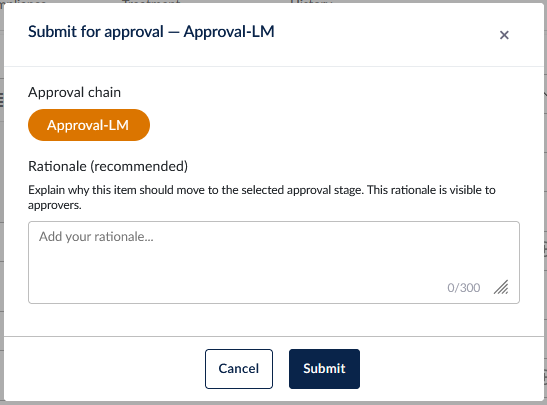
Submit with context. Moving a risk to an approval stage opens a Submit for approval dialog showing the approval chain ahead, with a rationale field so approvers see why the risk was submitted.
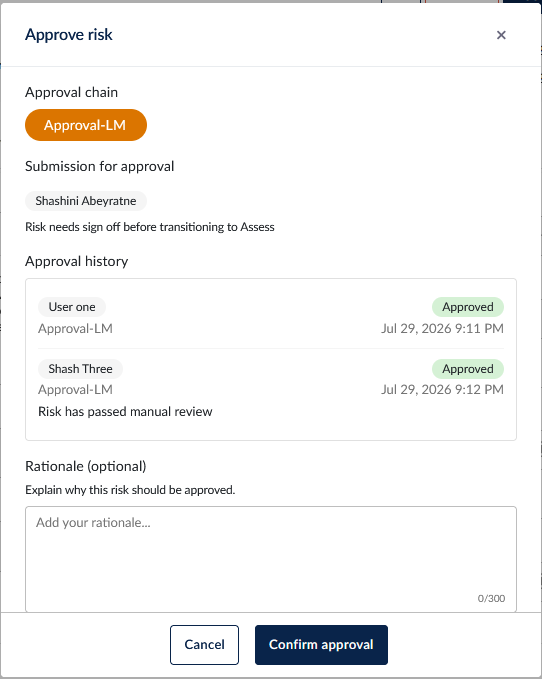
Approve or decline from the risk. Approvers see Approve and Decline buttons directly on the risk. The dialog shows the approval chain, the submitter's rationale, and the approval history to date. A reason is required when declining, and a single decline ends the approval immediately.
Automatic progression. Once the approval logic is satisfied, the risk automatically moves to the stage's configured destination — the next approval stage or back into the standard workflow. If an automatic transition is blocked due to exit requirements of the approval stage or entry requirements of the configured "Go to" stage, risk owners are notified so nothing stalls silently.
Cancel when plans change. Users with risk edit and workflow stage transition permissions can cancel a pending approval, returning the risk to the stage it came from. A cancellation reason is required.
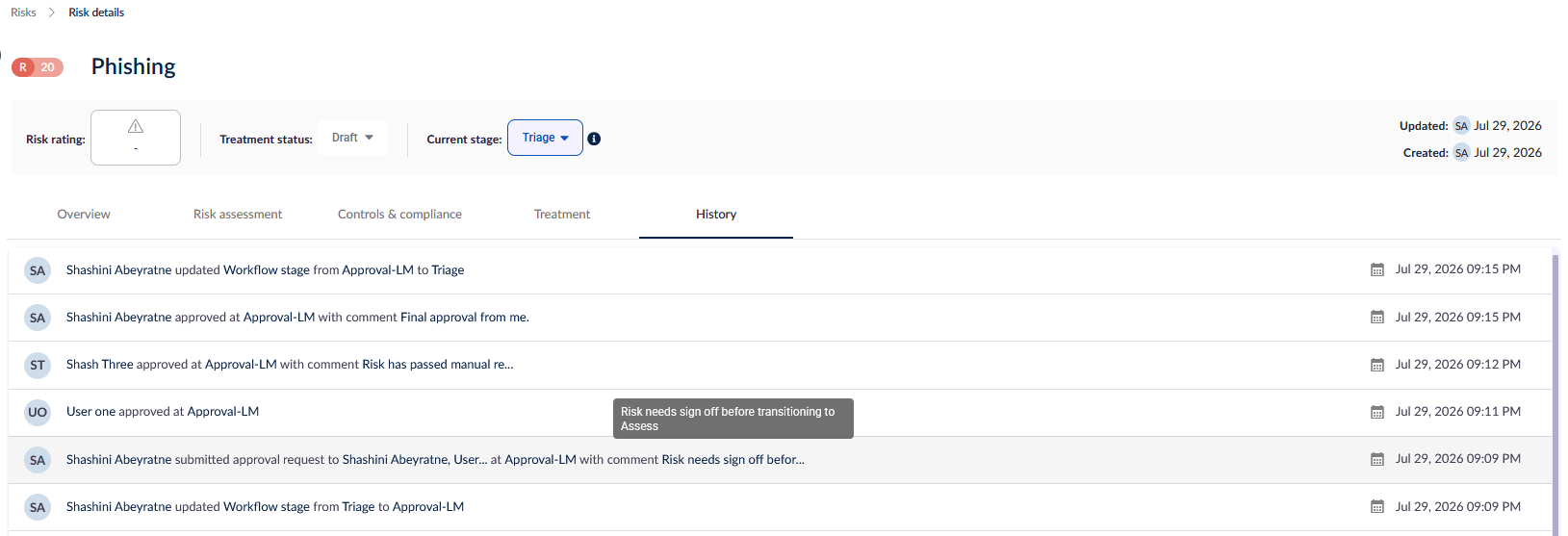
Full audit trail. Every submission, approval, decline, and cancellation is recorded on the risk's History tab, including who acted and when.
Notifications built in. Approvers and risk owners receive in-app and email notifications for approval requests, completions, cancellations, and blocked transitions. These can be managed under Notification management > Approvals.
How it works
Go to Administration > Risk workflow and select Create new workflow stage > Approval stage.
On the Stage approvers tab, choose your approvers and the approval logic.
Set the Go to destination — where the risk moves once approved.
On a risk, select the approval stage from the workflow stage dropdown, add a rationale, and select Submit.
Approvers action the request from the Approve / Decline buttons on the risk. Once the logic is met, the risk moves on automatically.
Good to know
Risk Approvals is available on all plans that include the risk workflow — no setup needed beyond creating your first approval stage.
Existing risks and workflows are unaffected. All current stages remain standard stages, and nothing changes until you add an approval stage.
While an approval is pending, the risk cannot leave the stage until the request is approved, declined, or cancelled.
Creating and editing approval stages uses your existing risk workflow stage permissions.
Head to your Risk workflow settings to add your first approval stage.
📖 Read more in the knowledge base: https://knowledgebase.6clicks.com/configuring-risk-workflow#approval