
Finding the right file before an audit used to mean hunting through registers one by one. The new Files Register gives you a single, searchable inventory of files across your iGRC registers, with version history, expiry tracking, and links to the controls and tests each file supports.
One register for your iGRC files. Attachments and uploads made to your iGRC registers, Controls, Tests and Tasks, including evidence shared through a Hailey chat, automatically create a Files Register record. You can add files directly in the formats your evidence is supplied in, e.g., documents, spreadsheets, presentations, images, audio and video. You will find the Files Register under Registers. Files attached to other custom registers are not captured at this time but this functionality is on our roadmap.
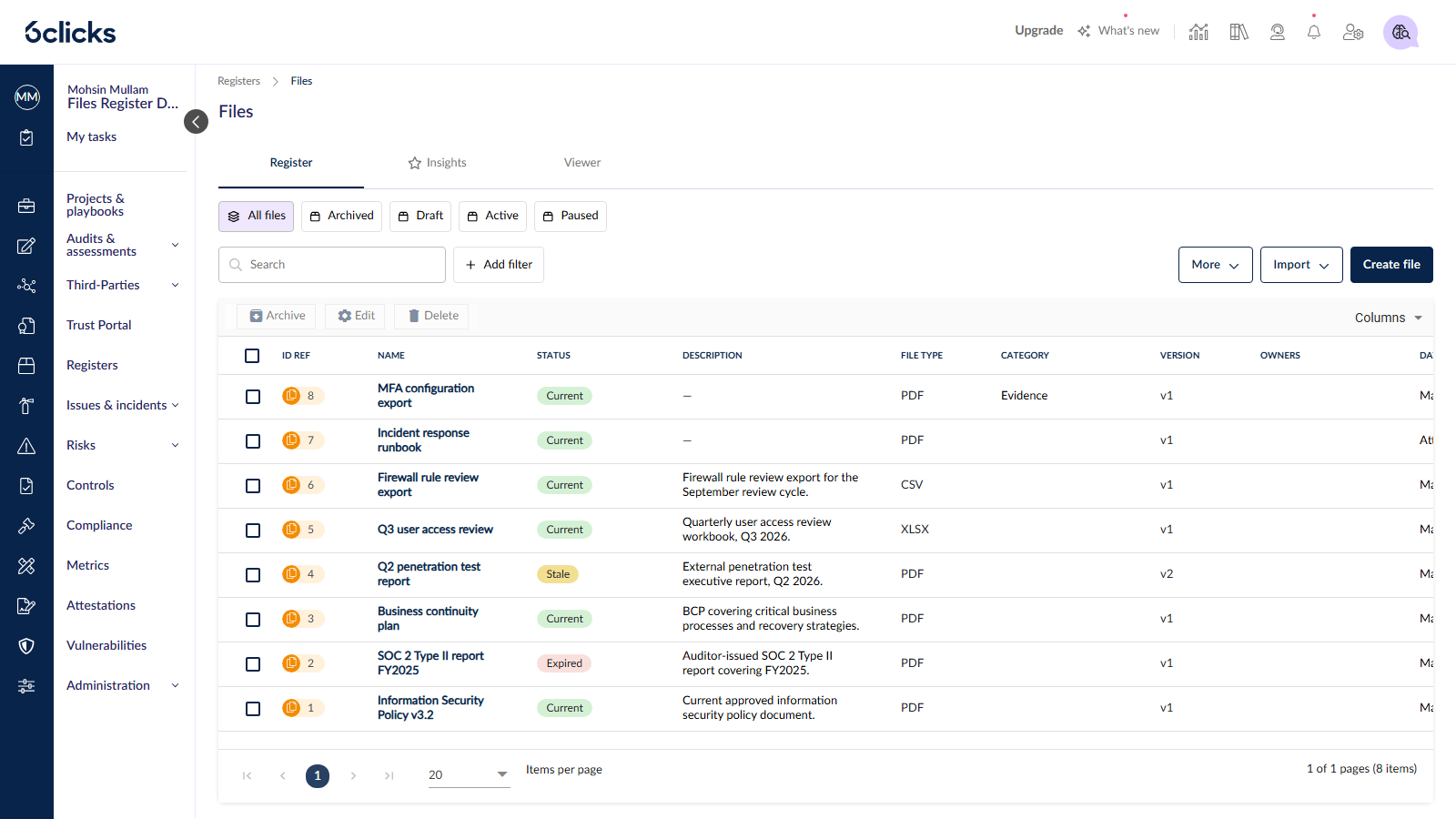
Freshness at a glance. Valid from and Expiry dates on each record drive the Status column, which shows every file as Current, Stale or Expired, so you see what needs to be replaced or updated before an auditor asks.
Version history on every record. Replace a file and earlier versions are kept, giving you a clear trail of what existed and when. View and manage past versions from the record's Versions tab.
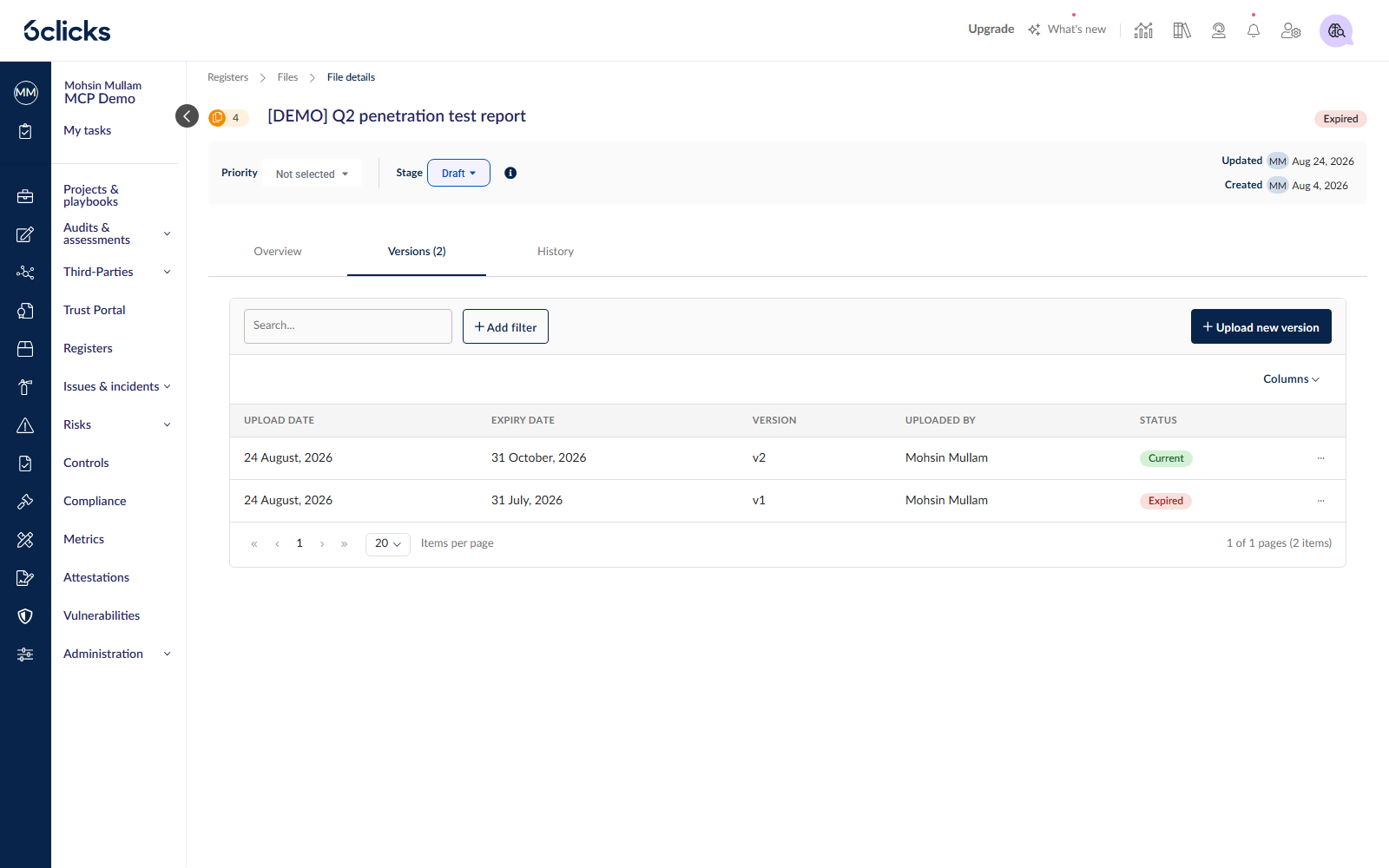
Collect once, reuse everywhere. Link the same file as evidence across tests and controls instead of uploading it again for each framework. Links point to the file record, so replacing a file once updates it everywhere it's used.
From file to evidence. Link a file to a test with a validation guide and evaluation criteria, and Hailey assesses whether or not it shows the control operated effectively, judging the evidence against the validation guide and the linked framework requirement, the way an experienced auditor would.
How it works
Open Registers → Files in your Spoke.
Upload evidence on a test or task, attach a file to a control or click Create file to add one directly. 21 file types are supported, from Word, Excel and PDF to images, audio and video, up to 100 MB. A record will be created in the Files Register.
Open the record to set its Valid from and Expiry dates and link it to the controls and tests it supports.
When a file nears expiry, upload a new version from the Versions tab. Every place the file is linked sees the update.
Open the Files Register in your Spoke to see the files from across your iGRC registers in one place.
Read here for more information: Managing & configuring the Files register